Clio Manage provides a native integration with QuickBooks Online (QBO), designed for law firms to sync billing and accounting data seamlessly. This is particularly useful for small firms, because it automates data flow and supports trust accounting compliance, reducing manual work and errors.
See the Step-by-Step Setup for Clio Manage + QBO
Key Features of the Integration
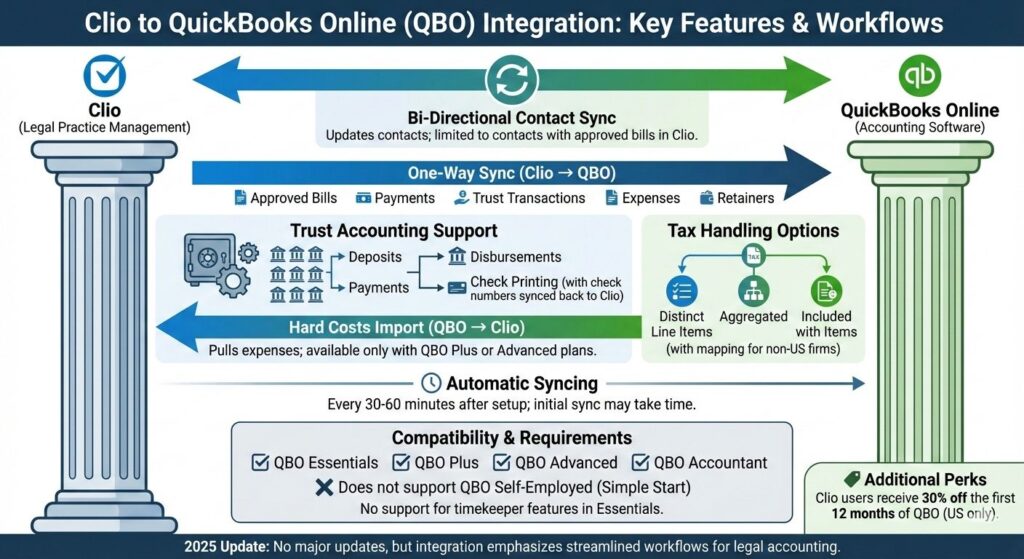
- Bi-directional contact sync: Updates contacts between Clio and QBO (limited to contacts with approved bills in Clio).
- One-way sync from Clio to QBO: Covers approved bills, payments, trust transactions, expenses, and retainers.
- Trust accounting support: Handles up to 15 trust accounts, including deposits, payments, disbursements, and check printing (with check numbers synced back to Clio).
- Hard costs import: Pulls expenses from QBO into Clio (available only with QBO Plus or Advanced plans).
- Tax handling options: Export taxes as distinct line items, aggregated, or included with corresponding items (with mapping for non-US firms).
- Automatic syncing: Every 30-60 minutes after setup; initial sync may take time.
- Compatibility: Works with QBO Essentials, Plus, Advanced, or Accountant; does not support QBO Self-Employed (Simple Start). No support for timekeeper features in Essentials.
- Additional perks: Clio users receive 30% off the first 12 months of QBO (US only).
- No major updates noted in 2025, but the integration continues to emphasize streamlined workflows for legal accounting.
This setup makes Clio + QBO a go-to stack for small firms, ensuring billing from Clio flows directly into QBO for reconciliation and reporting without duplicate entry.
Step-by-Step Setup for Clio Manage + QBO
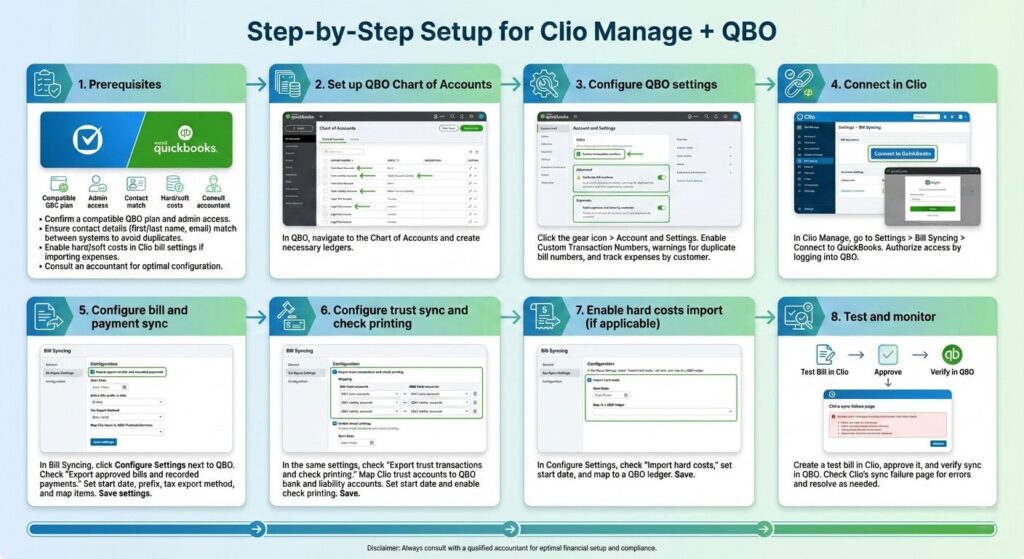
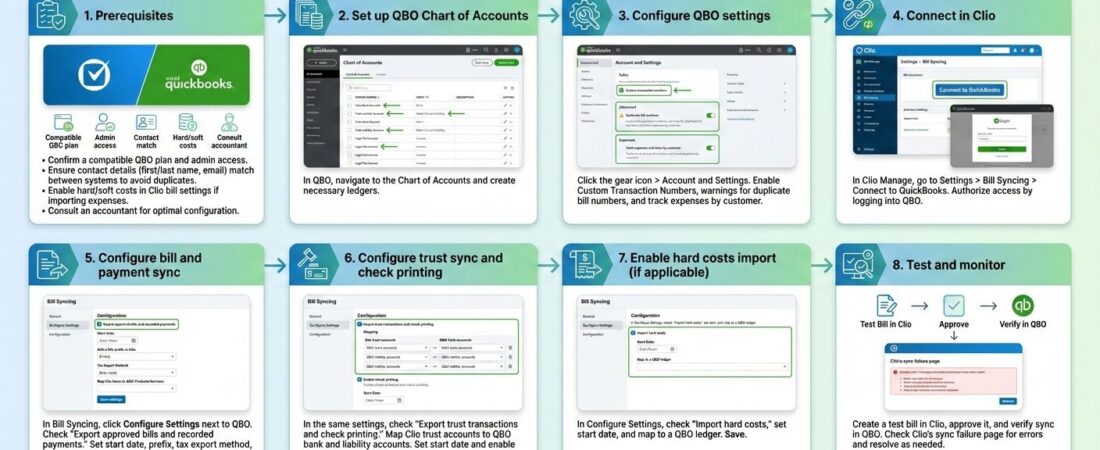
- Prerequisites: Confirm a compatible QBO plan and admin access. Ensure contact details (first/last name, email) match between systems to avoid duplicates. Enable hard/soft costs in Clio bill settings if importing expenses. Consult an accountant for optimal configuration.
- Set up QBO Chart of Accounts: In QBO, navigate to the Chart of Accounts and create necessary ledgers (e.g., trust bank, liability, income).
- Configure QBO settings: Click the gear icon > Account and Settings. Under Sales, enable Custom Transaction Numbers. Under Advanced, enable warnings for duplicate bill numbers. For hard costs import, under Expenses, turn on “Track expenses and items by customer.”
- Connect in Clio: In Clio Manage, go to Settings > Bill Syncing > Connect to QuickBooks. Authorize access by logging into QBO.
- Configure bill and payment sync: In Bill Syncing, click Configure Settings next to QBO. Check “Export approved bills and recorded payments.” Set a start date, add a Clio prefix to bills, choose tax export method (map rates if needed), and map Clio items to QBO Products/Services. Save settings.
- Configure trust sync and check printing: In the same settings, check “Export trust transactions and check printing.” Map Clio trust accounts to QBO bank and liability accounts. Set start date and enable check printing if desired. Save.
- Enable hard costs import (if applicable): In Configure Settings, check “Import hard costs,” set start date, and map to a QBO ledger. Save.
- Test and monitor: Create a test bill in Clio, approve it, and verify sync in QBO. Check Clio’s sync failure page for errors and resolve as needed.
For troubleshooting, common issues include duplicate contacts (merge in QBO), invalid emails, or closed accounting periods—refer to QBO’s knowledge base or Clio’s error codes for fixes. Detailed guide available on Clio’s Help Center.