
We may earn money or products from the companies mentioned in this post.
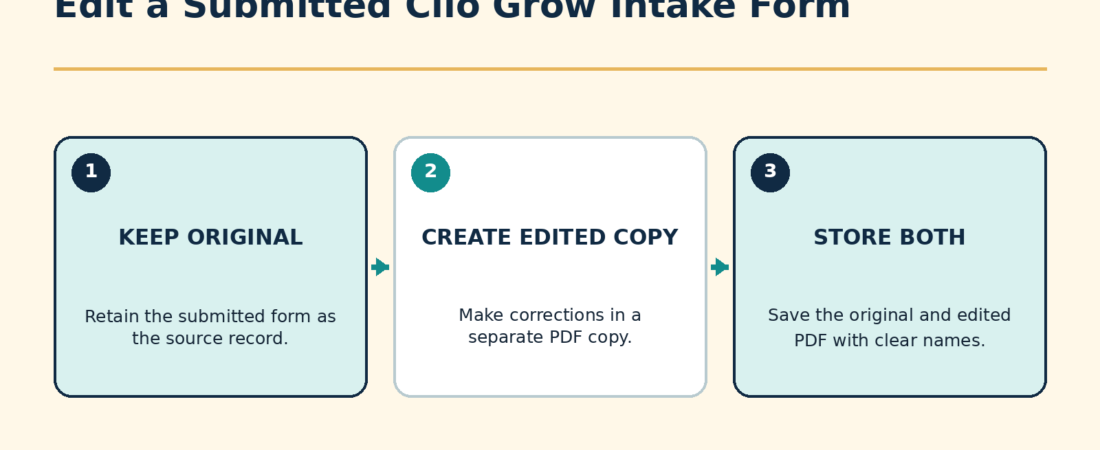
A prospective client cannot edit a Clio Grow intake form after submitting it. A Clio administrator can edit the submitted form when information is missing or incorrect. Clio then saves the edited version as a second PDF, keeps the original submission, and adds a record to the matter timeline.
Edit the form from the Forms tab
- Open Forms in Clio Grow.
- Select the Submitted tab.
- Use filters if needed to find the correct form.
- Open the form by selecting its name.
- Open the Actions menu and select Edit Form.
- Make the necessary changes.
- Select Submit.
Edit the form from the matter
- Open the correct matter.
- Select the Workflow tab.
- Find the submitted intake form.
- Open the Options menu and select Edit Form.
- Make the correction and select Submit.
Both routes preserve the original. The corrected form is saved as another PDF rather than silently replacing what the prospective client submitted.
What happens to the record
| Item | After an administrator edits the form |
|---|---|
| Original submitted PDF | Remains available in the matter. |
| Corrected form | Is saved as a second PDF. |
| Matter timeline | Receives a new entry recording the submission. |
| Client access | The prospective client still cannot reopen and edit the submitted form. |
Concrete example
Suppose fictional prospect Avery Brooks enters “March 12, 2025” for an incident date, then calls the firm to explain that the correct date was March 21. An administrator opens the submitted form, corrects the date, and submits the edit. The matter retains Avery’s original PDF and adds a second PDF containing the corrected date.
That history matters. Staff should review both versions before relying on the corrected answer for a deadline, conflict check, pleading, or other legal work. An intake-form correction does not replace the firm’s normal verification process.
When to edit and when to send a new form
An administrator edit is appropriate for a focused correction or missing answer that staff can accurately enter. A new form may be clearer when the client needs to provide many new answers, upload different supporting files, or personally attest to a substantially revised set of facts.
If you send a new form, label the purpose clearly so staff can distinguish it from the original. Avoid deleting the original merely to make the matter look cleaner. Preserving the original and corrected records provides a clearer history.
If Edit Form is unavailable
- Confirm the form is submitted. Pending forms use reminder and resend actions instead.
- Confirm your role. Clio’s instructions specify that an administrator can edit a submitted form.
- Confirm you opened the correct item. Use the Submitted tab or the submitted form in the matter’s Workflow tab.
- Confirm the form is an intake form. Other documents and e-signature items can have different controls.
Check the result
- Open the matter and verify that both PDFs are present.
- Open the corrected PDF and confirm the changed answer is accurate.
- Check the matter timeline for the new entry.
- Tell the responsible attorney or intake staff which version contains the correction.
- If the answer connects to a custom field, confirm that the value used elsewhere in the matter is also correct.
If the problem happened because a form question was not connected to the intended data field, read why a Clio Grow custom field may be missing from an intake form. If the client never submitted the form because the link stopped working, follow the steps for an expired Clio Grow intake form link.
Source check: Clio Help Center reviewed October 4, 2026.