
We may earn money or products from the companies mentioned in this post.
Affiliate disclosure: some links in this article are affiliate links. If you sign up or purchase through them, AI for Law Firms may earn a commission at no extra cost to you. We only describe features and prices published by the vendor.
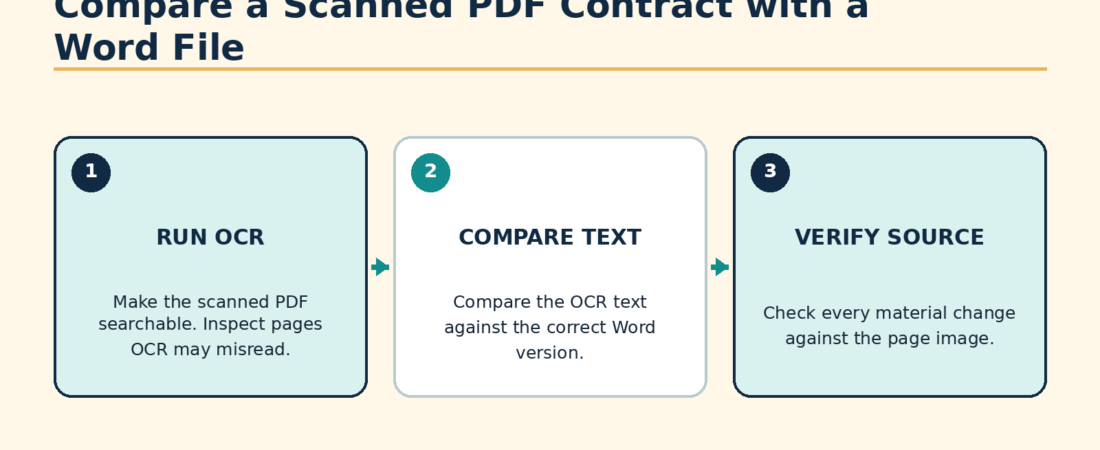
For a text-level comparison of a scanned PDF contract with a Word document, preserve both originals, run optical character recognition on a working copy of the PDF, verify the recognized text against the scan, and compare the OCR-derived copy with the approved Word file. Use both a text comparison and a visual page check. OCR errors can look like contract revisions, so every reported change must be traced back to the scanned page.
Adobe Acrobat Pro’s current Compare Files workflow supports a document type for scanned documents, drawings, or illustrations. Adobe’s recognized-text correction instructions explain how to review and fix suspect OCR words. Acrobat can compare scanned pages visually without OCR. OCR is the preparation step when you also need a searchable text comparison. Keep both checks: the recognized text helps locate differences, and the page image confirms them.
Start by identifying what kind of PDF you have
Open the PDF and try to select a sentence with the text cursor. If individual words can be selected and searched, the file may already have a text layer. If the entire page behaves like one image, it is image-only and needs OCR for a text comparison.
A PDF can also contain a poor or partial OCR layer. Search for a distinctive phrase from the first page and another from the middle of the contract. Copy each phrase into a plain-text window. If letters, spaces, or punctuation are wrong, plan to rerun OCR on a working copy or treat the extracted text cautiously.
Preserve the comparison record
- Keep the approved Word file unchanged.
- Keep the received scanned PDF unchanged.
- Create a copy of the PDF for OCR and label it clearly.
- Record which Word version is the expected baseline.
- Save the comparison report separately from both sources.
Do not convert the only copy of the scan into Word and overwrite the original. Conversion can rebuild paragraph breaks, tables, headers, and page geometry. The scan is needed to distinguish an actual revision from a conversion error.
Once you have a clean comparison, the substantive review is a separate step. A Word add-in such as Gavel Exec can check an agreement for missing terms and inconsistencies and suggest redlines against your playbook; see our Gavel Exec review (code AI4LAWFIRMS-EXEC5 takes 5% off your first month).
Workflow 1: Compare in Adobe Acrobat Pro
- Create the baseline PDF. Save or export a working copy of the approved Word document as PDF. Check that the exported PDF has the same wording, tables, schedules, headers, and footers as the approved DOCX.
- OCR the scanned working copy for text review. Visual comparison of scans can run without this step, but OCR provides searchable text to assist the review. In Acrobat, open the scan and use All tools > Scan & OCR > Recognize Text. Choose the correct page range and document language. Save the result under a new filename.
- Verify sample pages. Check names, dates, section numbers, dollar amounts, symbols, tables, and several dense paragraphs against the page image. Adobe directs users to review OCR results for accuracy and completeness.
- Open Compare Files. Select the exported baseline PDF as the older file and the OCR working copy as the newer file.
- Select the scanned-document setting. In comparison settings, choose the option for scanned documents, drawings, or illustrations when it fits the files.
- Run the comparison and save the report. Review the summary and each changed page. Open the original scan beside the report to confirm each text difference.
Adobe’s official instructions are available in Compare two versions of a PDF file and Scan documents to PDF and recognize text.
Workflow 2: Convert an OCR copy to Word, then use Word Compare
This route is useful when the reviewer needs a Word redline. It adds another conversion step, so it also adds more possible artifacts.
- Run OCR on a copy of the scanned PDF and verify the recognized text.
- Export the OCR working copy to DOCX. Keep the OCR PDF and scan unchanged.
- Open the converted DOCX and inspect paragraph breaks, tables, lists, page headers, footers, footnotes, and section numbering.
- In desktop Word, select Review > Compare > Compare. Use the approved Word file as Original and the converted DOCX as Revised.
- Run a first pass with Formatting cleared. Save the result as a third document.
- Run a separate formatting comparison or visual page review. Do not treat the converted document’s layout as an authoritative copy of the scan.
Choose New document in Word’s comparison output settings to produce a third comparison document while preserving both sources. If Word reports nearly every paragraph as changed, use the troubleshooting steps in why Word Compare shows the whole document changed.
Common OCR mistakes in contracts
| Scanned text | Possible OCR output | Why it matters | Verification |
|---|---|---|---|
| Section 10.1 | Section 10.l | Creates an apparent reference change | Inspect the page image and reference target |
| $1,000,000 | $1,OOO,OOO | Letters replace zeros | Check every material amount |
| 30 days | 3O days | Letter O replaces zero | Search OCR text for mixed characters |
| shall not | shall | Faint word is omitted | Compare the full sentence with the scan |
| Section 7.4(b) | Section 7.4(6) | Letter b becomes numeral 6 | Check the cited subsection visually |
| co-operate | co- operate | Line or spacing artifact creates a diff | Inspect line endings and hyphenation |
Fictional comparison example
A firm approved Northstar-SaaS-Agreement-v12.docx. The signature packet returned as a 36-page scan. After OCR, the comparison reports 54 differences. Forty-nine are line-break, hyphenation, or character-recognition artifacts. Five require direct review:
- The effective date on page 1 differs.
- The payment period in Section 5.2 differs.
- A sentence is absent from the limitation section.
- A schedule contains a different service start date.
- The signature page names a different contracting entity.
The reviewer confirms each item on the scan, then records the page, approved text, scanned text, and disposition in a comparison log. The OCR output helps locate differences, but the page image confirms what the signed document contains.
QA checklist before relying on the result
- The Word baseline is the last approved version.
- The scan and Word original remain unchanged.
- OCR was run only on a working copy.
- The correct language and page range were selected.
- Names, dates, amounts, section numbers, and punctuation were sampled for OCR accuracy.
- Every material difference was checked against the scanned page.
- Tables, schedules, headers, footers, and signature pages received visual review.
- Apparent deletions were checked for faint print, crop errors, and missing pages.
- The final report records filenames and the comparison date.
Comparison identifies differences. It does not determine their legal significance. Route substantive changes through the firm’s normal attorney review and, where applicable, its playbook-driven redlining process.
Checked October 4, 2026. Acrobat tool names can vary by desktop release and subscription. Confirm the commands available in your installed version.
Sources and further instructions
- Adobe: compare two versions of a PDF
- Adobe: recognize text in scanned PDFs
- Microsoft: Word legal blackline comparison
- Adobe documents reviewing and correcting uncertain OCR results with the Correct Recognized Text tool.
If you are evaluating software for the broader contract review process, compare the workflow requirements in our Gavel Exec review and Gavel Exec vs. Spellbook comparison. Check a vendor’s current feature documentation for the particular file types and checks your firm needs.