
We may earn money or products from the companies mentioned in this post.
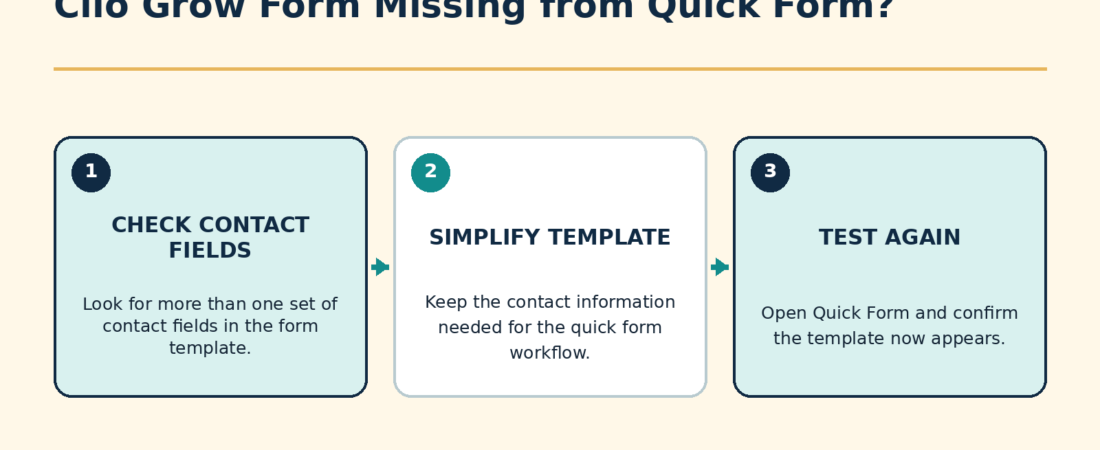
If a Clio Grow intake form template does not appear under Quick Intake > Quick Form, check whether the template contains more than one set of contact information. Clio excludes those templates from the Quick Form list because Quick Form must identify one contact as the prospective client. Clio suggests using regular questions for additional contacts when using Quick Form. Keep one contact-information set and collect the other person’s details with ordinary question fields.
Why the form disappears from Quick Form
Quick Form does more than send a questionnaire. It creates a new contact and a new matter for the prospective client. That makes the primary contact identity important.
Clio’s current documentation says a template with more than one set of contact information will not appear in the Quick Form template list. This is an intentional limitation, not necessarily a browser problem, permission error, or failed sync.
How to make the form appear
- Open Forms in Clio Grow and find the missing intake form template.
- Edit the template and identify every contact-information block. Look for a second person whose name, email, phone number, or other answers were added as contact-type fields.
- Decide which person should become the prospective-client contact when Quick Form creates the contact and matter.
- Keep the contact-information fields for that primary person.
- Replace additional contact-type fields with regular questions. For example, use single-line text questions labeled “Spouse’s full name” and “Spouse’s email address.”
- Save the template.
- Return to Quick Intake > Quick Form and check the template dropdown again.
Example
Suppose the fictional firm Pine Street Legal uses a family-law intake form with contact blocks for Jordan Lee and Jordan’s spouse, Taylor Lee. Because the template contains two sets of contact information, it does not appear under Quick Form.
The firm keeps Jordan’s contact block as the primary contact. It replaces Taylor’s contact block with ordinary questions such as “Other party’s full name,” “Other party’s email,” and “Other party’s phone.” Once saved, the form can appear in Quick Form because only one person is represented by contact-type fields.
What to check if the form is still missing
| Check | What to do |
|---|---|
| A second contact block remains | Review the entire template, including later sections, for another set of contact-type questions. |
| You edited a copy | Confirm the saved template is the same one you expect to select under Quick Form. |
| The form uses an unsupported structure | Create a simple copy with one primary contact block, save it, and check whether that copy appears. |
| The template appears, but a field is absent | Troubleshoot the field mapping separately. See why a Clio Grow custom field may be missing from an intake form. |
What changes when you use regular questions
A regular question can collect another person’s details, but it is not the same as creating or linking a separate Clio contact. Plan where those answers should go after submission. If the data needs to populate a custom field, choose a supported question type and connect it to a matching custom field.
Also remember what Quick Form creates: one new contact and one new matter. If your process needs several related contacts created as structured Clio records, Quick Form may not cover the whole process by itself.
Verify the fix before using the form with leads
- Open Quick Intake > Quick Form and confirm the template appears.
- Run a test using clearly fictional information.
- Confirm Clio creates the intended primary contact and matter.
- Confirm the additional person’s answers appear in the completed form.
- Confirm any connected custom fields received the expected values.
If you are still designing the larger intake process, compare the roles of the two products in Clio Grow vs. Clio Manage. For a broader look at the intake product, read our Clio Grow review.
Source check: Clio Help Center reviewed October 4, 2026.