
We may earn money or products from the companies mentioned in this post.
Affiliate disclosure: some links in this article are affiliate links. If you sign up or purchase through them, AI for Law Firms may earn a commission at no extra cost to you. We only describe features and prices published by the vendor.
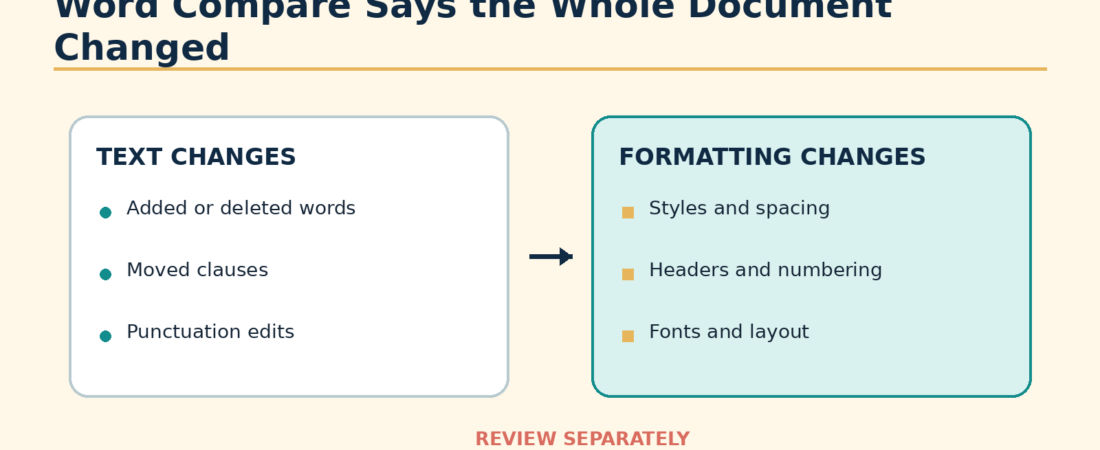
If Word Compare shows the whole contract as changed, first make working copies of both files, decide which revision state belongs in the comparison baseline, and run Compare with Formatting cleared. Save that text-focused comparison separately. Then run a second comparison with formatting enabled to inspect style, numbering, table, header, and footer changes. This separates wording edits from document noise while preserving both originals.
Microsoft calls this feature a legal blackline. It compares an original document with a revised document. Choose New document for the comparison result to keep the source documents unchanged. Choosing Original or Revised instead modifies the selected document. Microsoft also lets you choose whether to compare formatting, comments, moves, headers and footers, footnotes, tables, and other elements. See Microsoft’s current instructions for comparing document differences with legal blackline.
Why every paragraph can appear changed
A comparison can be technically accurate and still be hard to review. Word may be reporting changes to the structure or formatting beneath the visible text.
- Different templates or styles: One file uses a firm style such as Body Text while the other uses Normal, even though the paragraphs look similar.
- Global formatting changes: A font, spacing, margin, or paragraph setting was changed across the document.
- Automatic numbering changed: Adding or deleting one section caused later section numbers and references to update.
- A PDF was converted back to Word: The conversion rebuilt lines, paragraphs, tables, or page breaks.
- The source files still contain revisions: Word warns when either source contains tracked changes because those revisions affect the comparison result.
- The wrong baselines were selected: Comparing the counterparty’s revision with an older internal draft can surface two rounds of changes at once.
A contract with identical wording can therefore produce hundreds of formatting revisions. Turning off formatting removes that category from the report, but it does not prove that formatting is unimportant. A changed indent, hidden text setting, table layout, or heading style can still affect how the final document reads and functions. That is why the second pass matters.
Use a two-pass Word Compare workflow
- Identify the correct pair. Use the exact file your firm last sent as Original and the exact file returned by the counterparty as Revised. Confirm filenames, saved dates, and matter location before comparing.
- Preserve both originals. Duplicate each file. Perform any cleanup only on copies with labels such as
ORIGINAL-WORKINGandREVISED-WORKING. - Inspect tracked changes in the working copies. If revisions remain, decide how the comparison baseline should treat them. Do not accept or reject changes in the source originals. Save a separate clean working copy if the matter’s review protocol requires one.
- Run the text pass in Word for Windows. Select Review > Compare > Compare. Choose the earlier file as Original and the returned file as Revised. Select More, clear Formatting, keep the relevant text and structural categories selected, and show changes in a new document.
- Run the text pass in Word for Mac. Use Review > Compare > Compare Documents, or Tools > Track Changes > Compare Documents in versions that expose the command there. Choose the same Original and Revised files, open the available comparison settings, and exclude formatting for this pass.
- Save the result. Use a clear name such as
Vendor-MSA-v4-v5-TEXT-COMPARE.docx. Review insertions, deletions, moves, comments, tables, headers, footers, and footnotes that remain. - Run the formatting pass. Repeat the comparison with Formatting selected. Save it as a separate file. Review material layout and structure rather than accepting every formatting revision in bulk.
Microsoft’s interface labels can vary by Word version and platform, but the comparison model is the same: select the two versions, select the elements to compare, and place the result in a new document. For the broader workflow, see AI redlining in Microsoft Word.
After the mechanical comparison, tools like Gavel Exec can help with the substantive review in Word by generating suggested redlines and comments based on your playbook. See our Gavel Exec review; code AI4LAWFIRMS-EXEC5 takes 5% off your first month.
A fictional example
Suppose Harbor-MSA-v7.docx uses the firm’s Contract Body style. Opposing counsel returns Harbor-MSA-v8.docx after pasting the agreement into a different template. Word’s first result contains 640 formatting changes, which obscure three wording edits:
| Location | Actual revision | Noise around it | Review action |
|---|---|---|---|
| Section 4.2 | Payment period changed from 30 to 45 days | Body font and spacing changed | Review the wording in the text pass |
| Section 8.1 | Liability cap sentence deleted | Paragraph style replaced | Flag the deletion for attorney review |
| Schedule A | Implementation date changed | Table widths reflowed | Verify the date and inspect the table in the formatting pass |
The text pass makes the three wording changes visible. The formatting pass still shows whether the template change damaged numbering, table alignment, or cross-references.
When the text-only comparison is still noisy
- Confirm that one file was not created by converting a PDF. If it was, compare against a native Word version when available.
- Check whether the document language, punctuation characters, or hyphenation changed. Smart quotes, nonbreaking spaces, and line-end hyphens can create apparent edits.
- Check whether section numbers are typed text or automatic numbering. A single inserted clause may cause many legitimate number changes.
- Compare a known unchanged paragraph manually in both files. If the underlying wording differs character by character, Word is reporting a real text difference.
- For image-based documents, use the workflow in how to compare a scanned PDF contract with a Word document.
Final QA checklist
- The correct sent and returned files were used.
- Original files remain untouched.
- The comparison was created as a third document.
- Text and formatting were reviewed in separate passes.
- Headers, footers, footnotes, tables, comments, and moved text were included when relevant.
- Section numbering and internal references were checked after substantive edits.
- No one relied on hiding formatting as proof that formatting did not change.
- The final negotiated version was checked against the last approved draft before signature.
If the review also uses a clause playbook, keep the mechanical comparison separate from the substantive review. A blackline shows what changed. A playbook-driven redline helps the reviewer assess those changes against approved positions.
Checked October 4, 2026. Word menus can differ by edition and update channel. Confirm the options shown in your installed version.
Sources and further instructions
If you are evaluating software for the broader contract review process, compare the workflow requirements in our Gavel Exec review and Gavel Exec vs. Spellbook comparison. Check a vendor’s current feature documentation for the particular file types and checks your firm needs.