
We may earn money or products from the companies mentioned in this post.
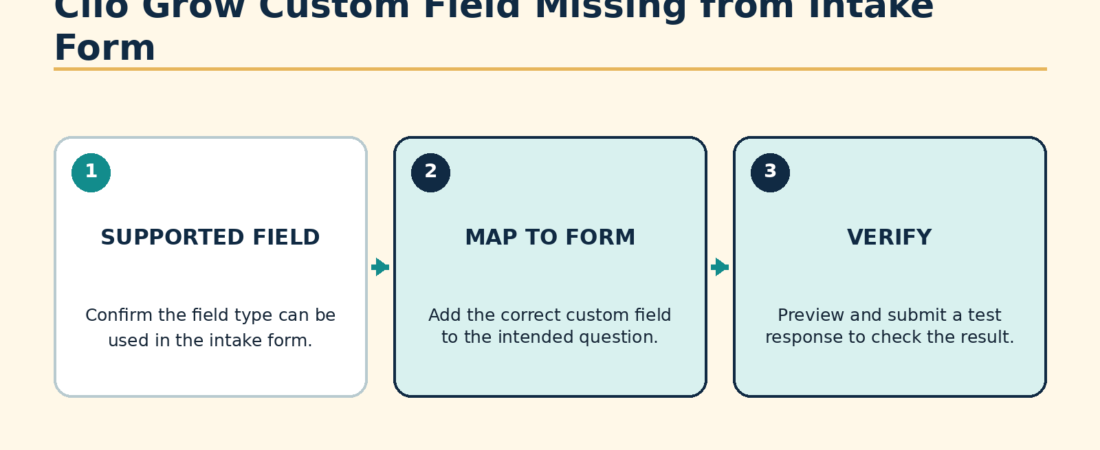
If a Clio Grow custom field is missing from an intake-form question, check two things first: whether the field was synced from Clio Manage into Clio Grow, and whether its field type matches the form’s question type. Clio only displays compatible custom fields in the question’s connection menu. Several Manage field types do not sync to Grow at all.
Step 1: Confirm the field exists in Clio Grow
If the field was created in Clio Manage, sync it before trying to connect it to a form question:
- In Clio Grow, open Settings > Custom fields.
- Select Sync Clio Manage custom fields.
- Choose Sync Clio Manage custom fields again.
- Select Done.
- Return to the intake form builder and check the field again.
Clio says Contact Select, Matter Select, Integer, and Time custom fields do not sync from Manage to Grow. If the missing field uses one of those types, repeated syncing will not make it appear.
Step 2: Match the custom field to a supported question
| Custom field type | Compatible intake question type |
|---|---|
| Single-line text or one-line text | Single-line text, multiple choice, or dropdown |
| Date | Date |
| Checkbox | Yes/no checkbox |
| Picklist or dropdown | Dropdown |
Clio does not let you connect a custom field to paragraph text, multi-select, section break, or file-attachment questions. If you are editing one of those question types, the custom field selector will not provide the connection you expect.
Step 3: Connect the question
- Create a new intake form or edit an existing template.
- Choose the question and select Edit.
- Open Question settings.
- Select Connect to custom field.
- Choose contact or matter, then select the appropriate custom field.
- If the form contains multiple contacts, select the contact to whom the answer belongs.
- Save the settings, then save the question.
Diagnostic table
| Symptom | Likely cause | Fix |
|---|---|---|
| The field is absent everywhere in Grow | It has not been synced, or it uses a type Grow does not sync. | Run the Manage-to-Grow sync and verify the field type. |
| The field exists in Grow but not for this question | The custom field and question types do not match. | Change the question to a compatible type. |
| A dropdown’s choices changed after connection | The connected custom-field picklist replaced the question’s choices. | Edit the picklist options in the source custom field and review the form again. |
| The answer is associated with the wrong person | The wrong contact was selected on a multiple-contact form. | Edit the question connection and choose the intended contact. |
| A Manage value changed but Grow still shows an older value | Value changes made in Manage do not automatically sync back to Grow. | Follow Clio’s guidance to maintain values through Grow and update Manage. |
The copied-question trap
Clio copies a question’s wording and options when you duplicate it, but it does not copy the custom-field connection. If the original question works and its duplicate does not, open the duplicate’s Question settings and reconnect the field. Check each copied question separately rather than assuming the whole template is mapped.
Example
Fictional firm Cedar Peak Law creates a Manage custom field called “Incident date” with the Date type. In Grow, the intake template uses a single-line text question for the incident date. The custom field does not appear as an option because Date must connect to a Date question.
The firm changes the question type to Date, opens Question settings, connects it to the Incident date matter field, and saves the question. It then submits a test form with fictional data and confirms the value reaches the correct field.
Verify the repair
- Submit the form with clearly fictional test information.
- Confirm the completed form contains the answer.
- Open the contact or matter and verify that the connected custom field contains the same value.
- If Grow hands the matter to Manage, verify the value after the update.
- Check another question of the same type to make sure you did not connect both questions to the same field by mistake.
If an entire template is absent from the Quick Form dropdown, that is a different issue. Use the checklist for a Clio Grow form not showing under Quick Form. To understand where Grow ends and matter management begins, see Clio Grow vs. Clio Manage.
Source check: Clio Help Center reviewed October 4, 2026.