As a lawyer, you’re paid for your expertise, not for manual data entry or trying to remember the 12th item on your new client checklist. Many law firms purchase powerful practice management software like Clio, only to use a fraction of its potential, leaving valuable time savings on the table. This guide will walk you through setting up Clio’s Automated Workflows—a feature designed to automate your repetitive tasks, ensure consistency, and give you back precious hours for client work and business growth
Automated Workflows in Clio Manage combine features like tasks, documents, and matter stages to create rules. When a specific event occurs (like opening a new case or moving it to a new stage), Clio automatically performs a set of actions for you. Let’s break down how to build them.
The Foundation: What You Need to Build First
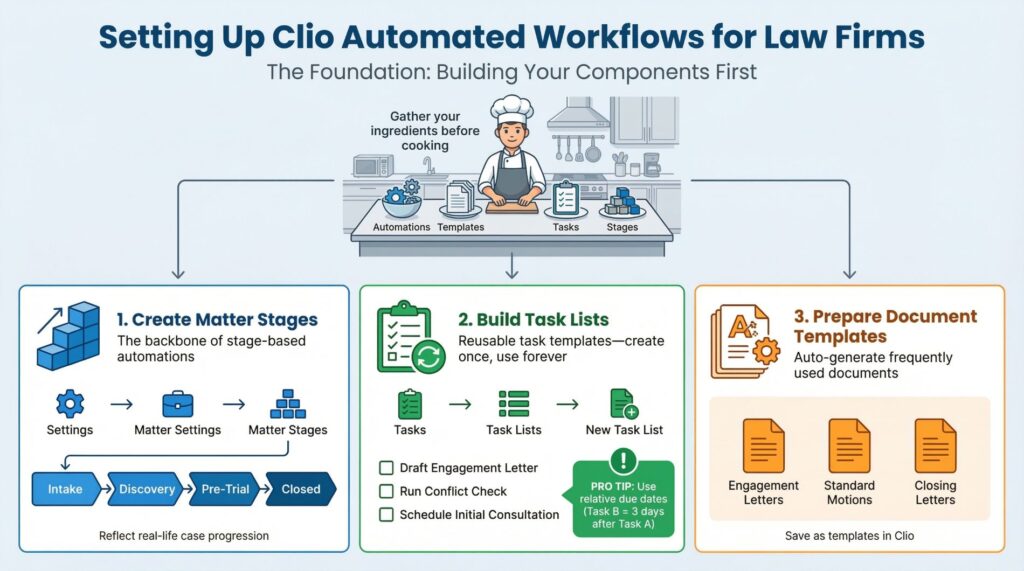
Before you create an automation rule, you need to build the components it will use. Think of this as gathering your ingredients before you start cooking.
1. Create Matter Stages
Matter stages (e.g., “Intake,” “Discovery,” “Pre-Trial,” “Closed”) are the backbone of stage-based automations. Define these in Settings > Matter Settings > Matter Stages. Create stages that reflect the real-life progression of your cases.
2. Build Task Lists
A task list is a reusable template of tasks. Instead of creating “Draft Engagement Letter,” “Run Conflict Check,” and “Schedule Initial Consultation” over and over, you bundle them into one list.
- To create one: Go to Tasks > Task Lists > New Task List.
- Pro Tip: When adding tasks, use the relative due date feature. You can set Task B to be due “3 days after” Task A is completed. This creates a smart, dependent timeline automatically.
3. Prepare Document Templates
Automated workflows can generate documents from templates you create in Clio. Ensure your frequently used documents (engagement letters, standard motions, closing letters) are saved as templates.
Step-by-Step: Creating Your First Three Automations
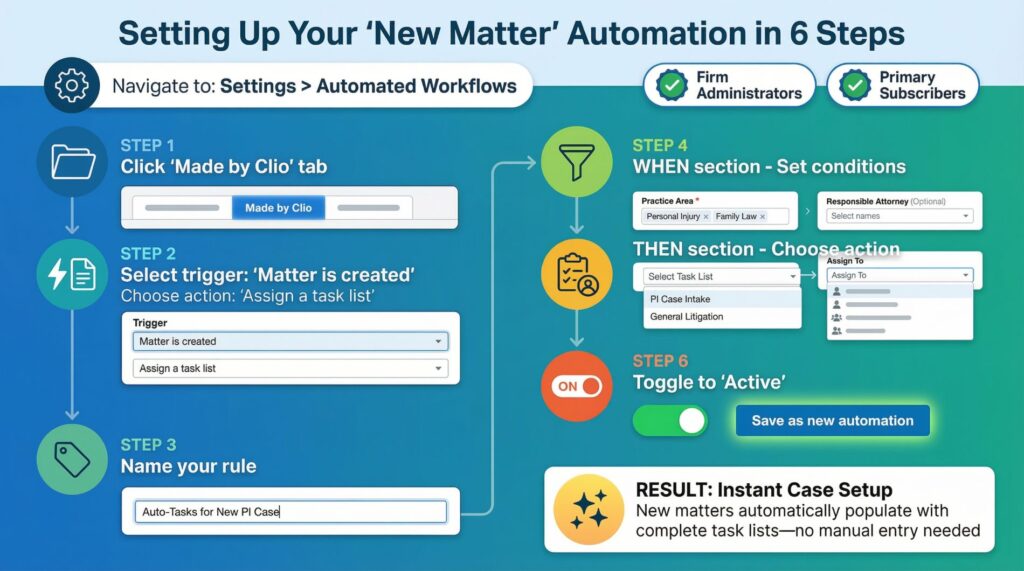
With your components ready, you can build automations. You’ll find the hub for this at Settings > Automated Workflows. Firm Administrators and Primary Subscribers have access to create these rules.
Automation 1: The “New Matter” Kickstart
This workflow automatically sets up a new case file the moment you create it.
- In the Automated Workflows section, click the Made by Clio tab.
- Select
Matter is createdand choose an action, likeAssign a task list. - Name your rule (e.g., “Auto-Tasks for New PI Case”).
- In the When section, set the conditions. You must select a Practice Area. You can optionally specify a Responsible Attorney to make the rule even more targeted.
- In the Then section, choose the Task List you built and who to Assign To.
- Toggle the rule to Active and click Save as new automation.
Result: Every time you open a new matter in that practice area, the full task list is instantly populated and assigned, with no manual entry.
Automation 2: The “Stage Change” Conductor
This powerful automation triggers when you move a matter from one stage to another (e.g., from “Discovery” to “Pre-Trial”).
- Select
Matter stage changedand an action likeGenerate a document. - Name it (e.g., “Generate Pretrial Memo on Stage Change”).
- In the When section, select the Practice Area, the From stage (optional), and the To stage (required).
- In the Then section, select your Document Template, set a File Name, and choose an output format (PDF or DOC).
- Activate and save.
Result: When you update the matter stage to “Pre-Trial,” Clio automatically drafts the pretrial memorandum, saves it to the matter, and notifies you.
Automation 3: The Clio Grow Integrator (For Grow Users)
If you use Clio Grow for intake, you can automate the handoff to Clio Manage for case work.
- Select
Matter from Clio GrowandApply a matter template. - Set your Practice Area condition.
- In the Then section, choose a pre-configured matter template that sets up custom fields, tasks, and default settings.
Result: When you convert a qualified lead from Clio Grow into a Clio Manage matter, it is instantly configured correctly based on its type.
Practical Workflow Ideas for Your Firm
To move from theory to practice, here are concrete examples you can adapt.
Advanced Management & Troubleshooting
- View & Edit: All your created automations live in the My Automations tab. Here you can rename, activate, deactivate, or delete them.
- Check History: Use the Automation history panel to see a log of when each workflow was triggered and for which matters. This is essential for auditing and troubleshooting.
- Fix Conflicts: Clio will warn you if you try to create a new “Apply a matter template” rule that conflicts with an existing one. If you see duplicate tasks or documents, check your automation history—you may have accidentally created duplicate workflows.
- Avoid Errors: If a task list fails to assign because a “Responsible Attorney” isn’t set on the matter, Clio will show an error. Simply add the missing information to the matter and change the stage again to trigger the automation.
Key Benefits and Final Recommendations
Implementing these automations transforms your practice. You reduce human error from manual data entry, enhance firm-wide consistency, and free up significant time for your team to focus on high-value, billable work.
Start small. Choose one repetitive, time-consuming process—like new client intake or a specific stage transition—and build your first automation around it. Once you see the time savings and reliability it provides, you’ll naturally expand automation to other areas of your practice. The initial investment in setting up these templates pays for itself many times over in reclaimed hours and reduced administrative stress.