There is. Document automation can turn hours of repetitive work into minutes of clicking buttons.
But the setup process matters way more than most software demos let on.
Clio’s document automation system let’s you build templates once and reuse them forever. The catch is you actually have to build them.
There’s no massive library of pre-made templates waiting for you.
You’re creating custom templates that match your exact workflow.
Some lawyers love this flexibility. Others want something that works out of the box.
Let me walk you through how Clio’s template system actually works, what the limitations are, and whether the time investment makes sense for your practice.
The Two Ways to Build Templates in Clio
Clio gives you two options for creating templates, and picking the right one upfront saves you from rebuilding everything later.
PDF templates work best when you’re dealing with court forms or documents that never change their layout. You upload an existing PDF, then drag fields onto specific spots where information should go.
The system uses color codes to show you which fields belong to which people (client, opposing party, attorney, etc.).
This approach is clean and simple. Upload a form, mark where data goes, done.
The downside is you’re locked into that exact layout forever. You can’t restructure the document later without starting over.
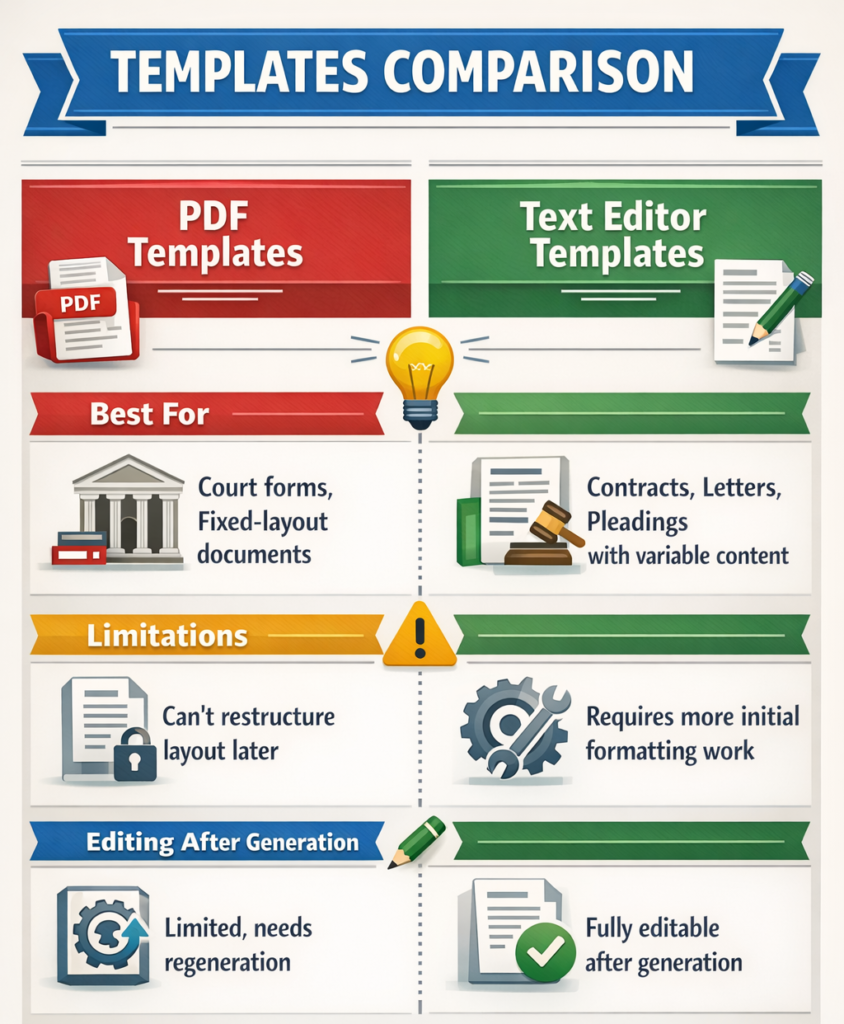
Text editor templates give you way more flexibility. You write or paste your document into Clio’s editor, drop in merge fields where client data should appear, and add signature fields if you need them.
You can include your firm’s letterhead automatically and set up page numbering that applies to every document you generate.
Here’s why this matters in practice: text editor templates stay editable after you generate them. When a judge orders a formatting change at 4pm or you realize a clause needs tweaking for a specific case, you can just edit the generated document.
You don’t have to regenerate the whole thing three times because you missed something.
Most firms that stick with automation end up using text editor templates more than PDF ones, even though PDFs look slicker in demos.
Setting Up Merge Fields (This Is Where the Real Work Happens)
Creating a template she’ll takes maybe 30 minutes. Making it actually pull in the right data takes longer.
Merge fields are codes that tell Clio where to grab information from. Client name, case number, opposing counsel contact info, court dates, whatever you track in Clio can automatically populate into your documents.
The system provides a list of available merge fields in the settings menu. You pick the ones you need and insert them into your template where that information should appear.
The frustration comes when you’ve created custom fields in Clio for your specific practice area, and those fields don’t automatically show up in the merge field list. You have to configure them properly in Clio’s system before they’ll be available for your templates.
If you practice family law and you’ve added custom fields for custody schedules or child support calculations, those need to be set up as merge-ready fields. Otherwise you’re manually typing that information into every document, which defeats the whole purpose.
| Template Type | Best For | Limitations | Editing After Generation |
|---|---|---|---|
| PDF Templates | Court forms, fixed-layout documents | Can’t restructure layout later | Limited, needs regeneration |
| Text Editor Templates | Contracts, letters, pleadings with variable content | Requires more initial formatting work | Fully editable after generation |
Building Your First Template (The Actual Steps)
Start with a document you’ve already written. Grab a real contract or motion you’ve used for an actual client.
This shouldn’t be theoretical.
Open it in Word or paste it into Clio’s text editor. Word gives you more control over formatting upfront.
Go through and highlight every piece of information that changes between cases. Client names, dates, case numbers, addresses, opposing party details, matter descriptions.
Mark all of it.
Now pull up Clio’s merge field list. This is usually under Settings then Documents.
You’ll see every field you can insert, marked with letters that tell you what type of field it is.
Person fields get marked with “P”, matter fields get “M”, company fields get their own marker.
Match your highlighted sections to the available merge fields. If you’re doing a real estate purchase agreement, you need buyer name, seller name, property address, closing date.
Copy the corresponding merge field codes and paste them where you deleted the highlighted text.
Save the file and upload it to Clio as a new template. Give it a specific name.
“Residential Purchase Agreement, Single Family” tells you and your team exactly what this generates.
“Contract Template 1” tells nobody anything.
Test it by generating a document from an existing matter. If the information fills in correctly, you’re done with basic setup.
If fields are blank or showing the merge field codes instead of actual data, your field names don’t match what’s in Clio’s database. You’ll need to fix either the template or your matter data.
Check out Clio’s current pricing and features here, they offer free trials so you can test templates before committing.
Conditional Logic Makes Templates Actually Smart
Once basic templates work, conditional logic is what makes them genuinely useful instead of just slightly convenient.
Real legal documents aren’t fill-in-the-blank exercises. A business contract looks completely different from a divorce settlement.
You don’t want to maintain separate templates for every tiny variation.
Clio Draft (their advanced templating feature) handles this through conditional logic. The template adjusts based on case type or options you choose when generating the document.
You can set conditions like “if case type equals litigation, include the discovery plan section. If it’s transactional, skip that section entirely.”
The interface uses a visual builder, not coding. You’re clicking buttons and selecting options from dropdowns, not writing formulas.
But the logic functions the same way.
This matters because you can maintain one intelligent template instead of dozens of similar ones. Your contract template can generate different versions based on whether you choose “commercial lease,” “residential lease,” or “purchase agreement” when creating a new matter.
The catch is you have to think through every scenario upfront. Every variation, every field combination your firm actually uses.
Most firms underestimate this work when they’re evaluating whether Clio’s flexibility justifies the setup time.
How This Compares to Smokeball’s Approach
Smokeball markets a huge library of pre-built templates. Thousands of forms tailored to different practice areas and state laws.
Sounds appealing until you actually try to use them for anything customized.
The templates work fine if your practice is completely standard and routine. The moment you need custom data fields or tracking methods that aren’t built into Smokeball’s templates, you’re back to manual data entry for portions of each document.
Users on Reddit have pointed this out specifically. Smokeball doesn’t support true custom fields the way you might expect.
If your firm uses non-standard case categories or you track information Smokeball’s templates don’t recognize, you’re manually entering that data every time.
That’s not really automation. That’s a hybrid workflow that’s partially automated and partially manual.
Smokeball works great for firms with completely standardized processes. For specialized practices that need customization, the pre-built library becomes limiting fast.
Clio makes you do more work upfront, but your templates become actual assets that match your firm’s reality. You’re not trying to force your workflow into someone else’s template structure.
The Automated Workflows Feature That Saves Even More Time
Once you’ve built a few templates, you can chain them together with Clio’s automated workflows.
Set up a workflow so that creating a new litigation matter automatically generates a case intake form, conflict check memo, and engagement letter all at once. All pre-filled with matter data.
You configure this in Clio’s Automated Workflows section. Pick your document templates, specify which file formats you want (PDF, Word, or both), and set the trigger.
From then on, every new litigation matter you create triggers all three templates automatically. You’re not clicking through menus to generate documents one at a time.
For firms that handle high volumes of similar cases, this compounds the time savings fast. Immigration firms processing dozens of visa applications use this to generate entire document packets automatically.
Family law practices set up workflows that create all standard divorce documents when they intake a new case.
The setup takes a few hours. The time savings accumulate over months and years.
Integration With Tools You Already Use
Clio’s templates connect with Microsoft Word for editing and template building. They combine with Google Drive, Dropbox, and OneDrive for storage.
This means generated documents automatically save to your firm’s existing cloud structure. You’re not manually organizing files after you create them.
If your firm already runs on Google Drive, Clio-generated documents appear there automatically. Your team finds them where they already work.
Same thing if you’re committed to Microsoft 365.
Smokeball keeps everything in its own system. That sounds cleaner in theory (everything in one place), but it creates friction when you need documents in tools outside Smokeball.
You’re exporting and moving files around.
Clio’s approach means documents live in your existing workflow. You’re not changing how your firm shares and collaborates on files just because you automated document generation.
The Honest Limitations You Should Know About
Clio’s template system isn’t perfect. Understanding the rough edges helps you decide if it’s the right fit.
Setup time is real. Building templates that cover all your document variations takes weeks or months, not days. If you’re switching from another system with existing templates, you’re rebuilding everything from scratch.
Template maintenance needs discipline. If someone edits a template without updating it in Clio, your next generated document uses outdated language. You need a clear process for who can change templates and how changes get communicated. This is a firm management issue, not a software problem, but it’s real.
Conditional logic can get complicated fast. A template with too many conditions becomes difficult to maintain. It often generates unexpected results when field combinations you didn’t test come up. Simpler conditional rules work more reliably.
Custom fields need configuration work upfront. If you track non-standard information, you have to set those fields up in Clio’s system before they’ll be available in templates. This takes time and some technical understanding.
Smokeball’s pre-built templates avoid these problems because they’re already structured. But you’re trading control for convenience. For specialized practices, that trade rarely works out.
See if Clio offers a free consultation for template setup, sometimes they provide implementation support that can speed things up.
When Document Automation Actually Makes Sense
The return on document automation depends entirely on volume and repetition. If you generate dozens of similar documents every week, Clio’s system pays back the setup time within a few months through hours recovered.
If you generate a few unique documents each month, the setup time might not justify the benefit.
Firms with specialized practices see faster returns. Immigration, family law, personal injury practices generate similar documents for every case. Each immigration client needs the same forms.
Each family law matter needs related documents.
Templating these creates genuine efficiency.
General practice firms see slower returns. Each matter might need completely different document types. The time spent building conditional logic that covers every scenario can exceed the time saved by not manually creating occasional documents.
High-volume transactional work benefits most. Real estate closings, contract reviews, corporate formations, practices that handle many similar transactions get the most value from automation.
If you’re generating fewer than 10 documents per week and they’re all different types, automation might not move the needle much. If you’re generating 50+ documents per week and half of them follow similar patterns, automation becomes essential.
Getting Started Without Overwhelming Your Firm
Start small. Pick one document type you generate constantly.
Build that template first.
Don’t try to automate your entire document library in the first month. Template one agreement type or one common motion.
Test it thoroughly.
Get your team comfortable using it.
Then add the second most common document. Then the third.
Building incrementally means you’re getting value from automation while you’re still setting up the rest of your templates. It also means you’re learning the system gradually instead of trying to master everything at once before seeing any benefit.
Most firms that successfully apply automation do it document by document over 3-6 months. Firms that try to build 30 templates in the first two weeks usually get frustrated and give up before finishing.
The Bottom Line on Clio Templates
Clio’s document automation needs more effort upfront than systems with pre-built template libraries. You’ll spend time learning the system, building templates, testing them, and revising them.
But once built, your templates become assets that compound in value. Every new matter uses them.
Every attorney at your firm uses them.
Your document quality gets standardized, and your billable time increases because you’re not spending hours formatting documents.
The flexibility means you can build templates that actually match your firm’s processes instead of forcing your workflow into someone else’s structure.
For practices that need customization and handle high document volumes, that flexibility creates better long-term outcomes than pre-built libraries that work great for standard cases but hit limitations fast for anything specialized.
Check current Clio pricing and trial options, testing the template system with your actual documents before committing helps you understand if the setup time makes sense for your practice.
The real question isn’t whether Clio can automate document generation. It can, and it does it more thoroughly than most competitors.
The real question is whether your firm generates enough similar documents to justify the setup investment, and whether you need enough customization that pre-built template libraries won’t actually solve your problem.
For many practices, the answer to both questions is yes. That’s when Clio’s template system stops being a nice feature and starts being essential infrastructure that your firm runs on.